---
title: How to add hCaptcha to your SiteManager Form?
description: In this article you will learn how to upgrade your existing SiteManager Form with a captcha powered by hCaptcha.
---
[Skip to content](https://support.sitemanager.io/en/forms/captcha/how-to-add-hcaptcha-to-your-sitemanager-form#main-content)
[](https://support.sitemanager.io/en?hsLang=en)
Open main navigation
Close main navigation
- [Go to sitemanager.io](https://www.sitemanager.io/)
[Go to sitemanager.io](https://www.sitemanager.io/)
How can we help?
- There are no suggestions because the search field is empty.
1. [Knowledge Base](https://support.sitemanager.io/en?hsLang=en)
2. [Forms](https://support.sitemanager.io/en/forms?hsLang=en)
3. [Captcha](https://support.sitemanager.io/en/forms?hsLang=en#captcha)
# How to add hCaptcha to your SiteManager Form?
## In this article you will learn how to upgrade your (existing) form with hCaptcha
- [You will need](https://support.sitemanager.io/en/forms/captcha/how-to-add-hcaptcha-to-your-sitemanager-form#you-will-need)
- [Important](https://support.sitemanager.io/en/forms/captcha/how-to-add-hcaptcha-to-your-sitemanager-form#important)
- [First Steps](https://support.sitemanager.io/en/forms/captcha/how-to-add-hcaptcha-to-your-sitemanager-form#first-steps)
- [Installing the Integration](https://support.sitemanager.io/en/forms/captcha/how-to-add-hcaptcha-to-your-sitemanager-form#installing-the-integration)
- [Secret Key](https://support.sitemanager.io/en/forms/captcha/how-to-add-hcaptcha-to-your-sitemanager-form#secret-key)
- [Upgrading your form](https://support.sitemanager.io/en/forms/captcha/how-to-add-hcaptcha-to-your-sitemanager-form#upgrading-your-form)
- [No Code Editor](https://support.sitemanager.io/en/forms/captcha/how-to-add-hcaptcha-to-your-sitemanager-form#no-code-editor)
- [Code Editor](https://support.sitemanager.io/en/forms/captcha/how-to-add-hcaptcha-to-your-sitemanager-form#code-editor)
- [Adding the new captcha](https://support.sitemanager.io/en/forms/captcha/how-to-add-hcaptcha-to-your-sitemanager-form#adding-the-new-captcha)
- [Site Key](https://support.sitemanager.io/en/forms/captcha/how-to-add-hcaptcha-to-your-sitemanager-form#site-key)
- [Options](https://support.sitemanager.io/en/forms/captcha/how-to-add-hcaptcha-to-your-sitemanager-form#options)
### You will need
- A SiteManager Form (from our **Platform Library** or **Snippet**)
- An account on [hCaptcha](http://hcaptcha.com)
### Important
hCaptcha will not work in older forms! An older form usually has the ID **custom\_form\[:swpageitemid:\]** while a newer form will have the ID **s-form\[:swpageitemid:\]\_\[:swpagelistid:\]**
hCaptcha needs 2 keys to work: Site key & Secret key. These keys are different from each other. Make sure to use them in the correct place
### First Steps
Our first step will be to head over to hCaptcha aand [create an account.](https://dashboard.hcaptcha.com/signup)
If you already have an account you can skip this step and continue on the next step
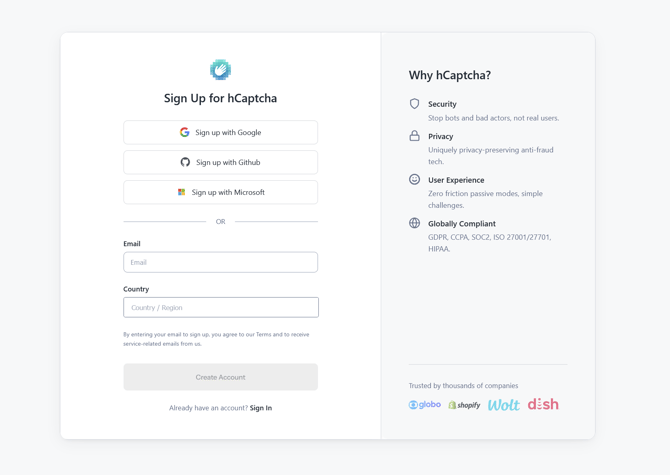
After signing up you'll see your Secret Key, you can copy this and paste this in a safe location.
### Installing the integration
When we have setup our keys in hCaptcha, the next step is to install the **hCaptcha Integration** from the Integrations Overview.
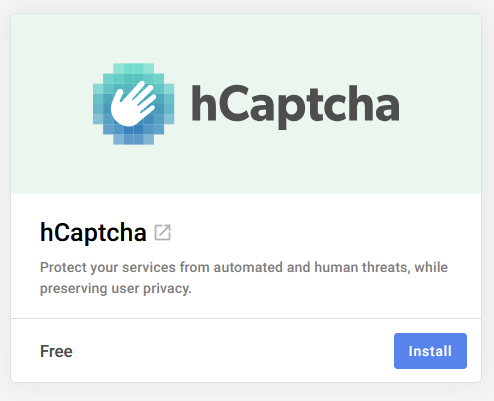
After installing the integration, click on **Connect** to open the popup.
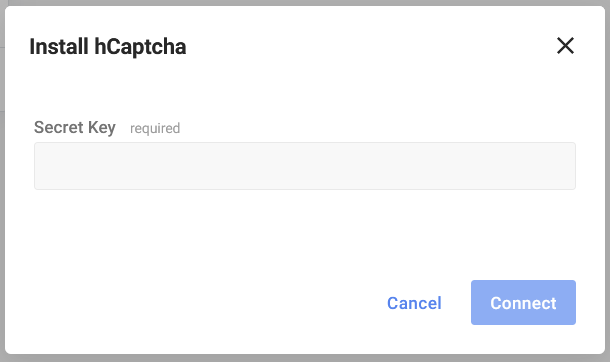
This will show us a popup where we have to paste our **Secret Key.**
### 
### Secret Key
In the popup, we will need to fill in our **Secret Key**. If you haven't copied it to a safe location when signing up, you can reset your Secret Key. To do this, we head over to the hCaptcha dashboard, here we click on our profile image \> Settings.
You can also navigate directly navigate to the settings page using this [link](https://dashboard.hcaptcha.com/settings/secrets)
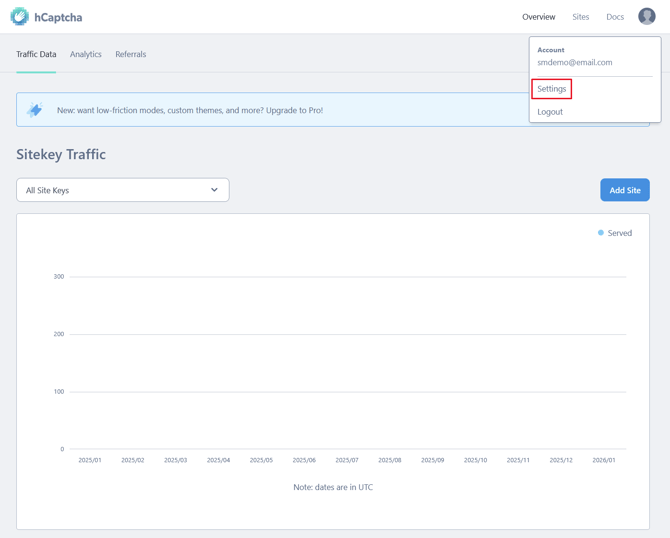
In the settings, you'll find a section with the secret key.
This will only show a part of the Secret Key!
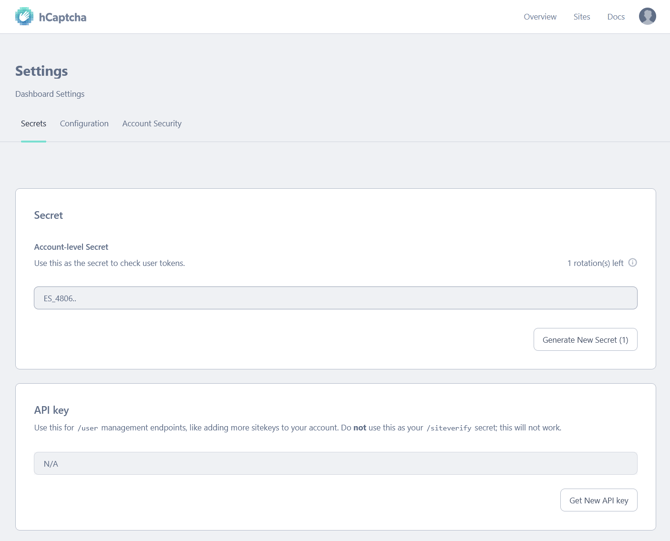
If needed you can change this key by clicking on **Generate New Secret**. When creating a new Secret Key, you'll also need to update this in the integration settings. To do this, you'll have to **Disconnect** & **Connect** the integration in the **Integrations Overview**
### Upgrading your form
If there already is a Captcha field available in your form, and you just want to know how to set it up, you can continue to the [next step](https://support.sitemanager.io/en/forms/captcha/how-to-add-hcaptcha-to-your-sitemanager-form#adding-the-new-captcha).
Next up, is upgrading your form with a captcha field. To upgrade an existing form component, you have two options (click on the name to be taken to the section that applies to your form):
- [No‑code Editor](https://support.sitemanager.io/en/upgrade-center/sitemanager-form/how-to-add-cloudflare-turnstile-to-your-form?hsLang=en#no-code-environment): If the form was created using the no-code editor or added from the project library.
- [Code Editor](https://support.sitemanager.io/en/upgrade-center/sitemanager-form/how-to-add-cloudflare-turnstile-to-your-form?hsLang=en#code-environment): If the form has been created using the Code Editor
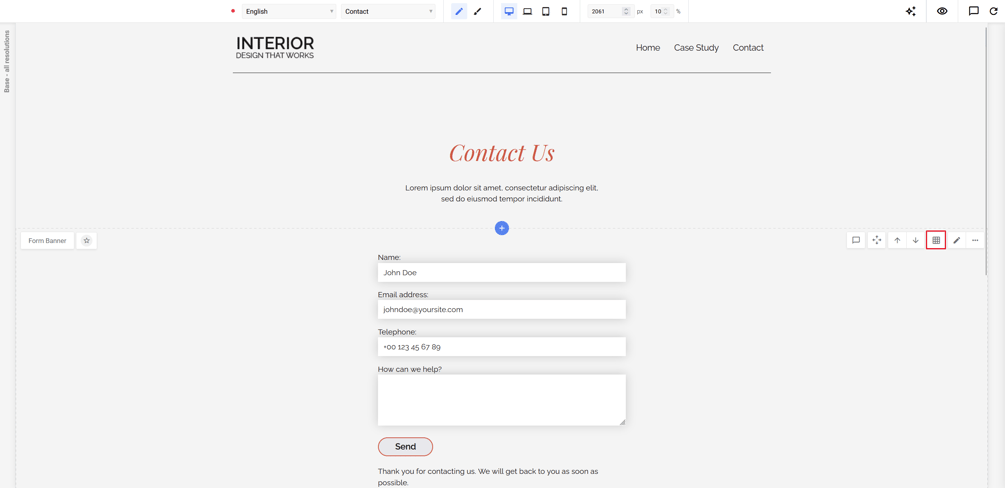
To know which type of form you have, we can click on the No-Code Editor icon as shown in the image below.
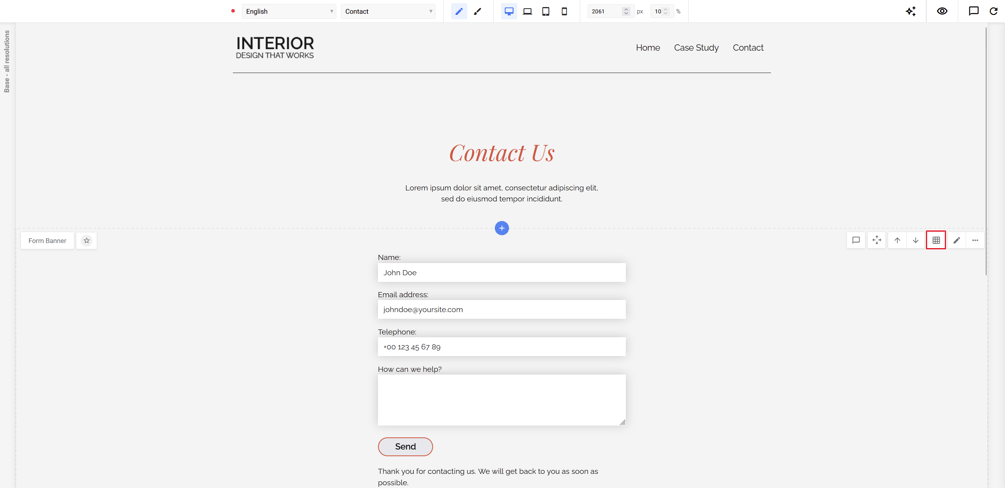
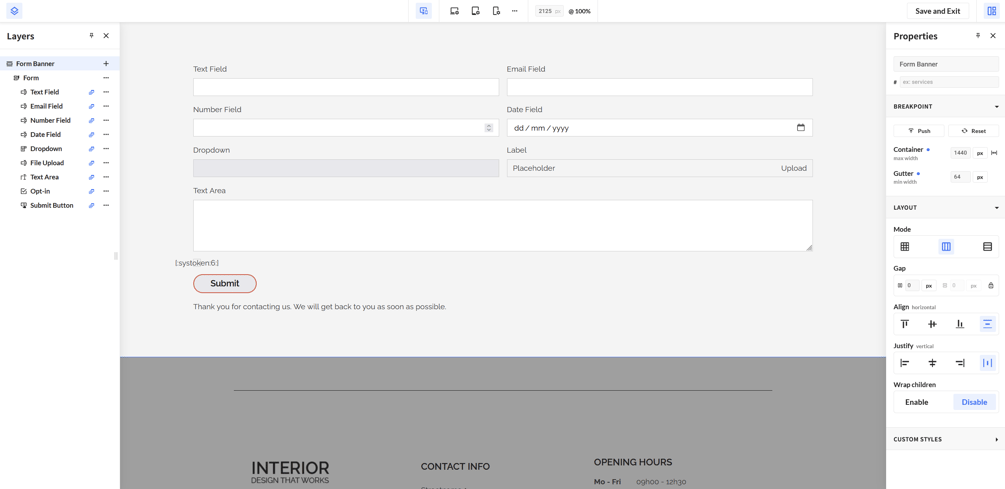
In the No-Code Editor, you'll see a block named Form on the left side in the Layers panels. A Form that has been made usng the Code Editor, will have this icon in front of it: "\<\>".
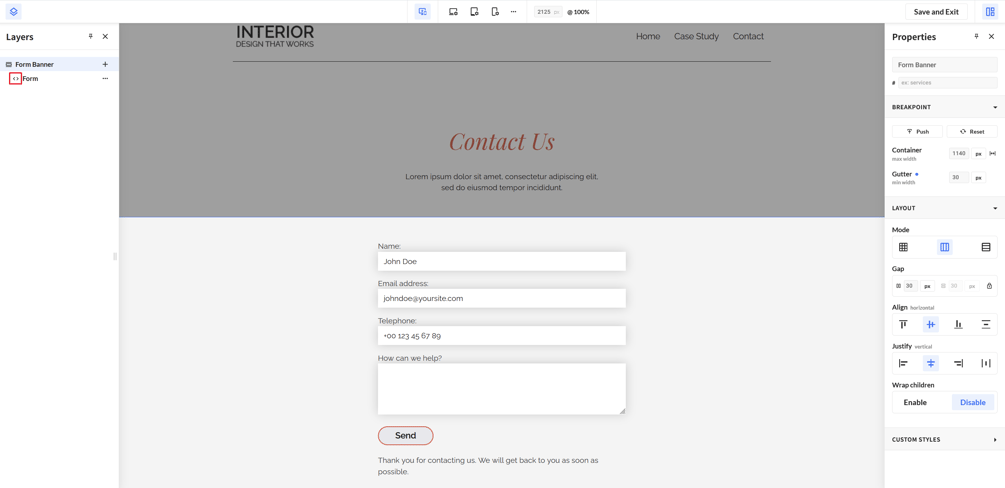
If your component has been using no-code editor, you'll see the form fields like in the image below.
---
#### No-Code Editor
Only use this section if your form has been using the No-Code Editor or if it has been installed from the Platform Library. If you are not sure, check out the section above: No-Code vs Code
To add hCaptcha to your form using the No-Code Editor, click on the **No-Code Editor icon.**
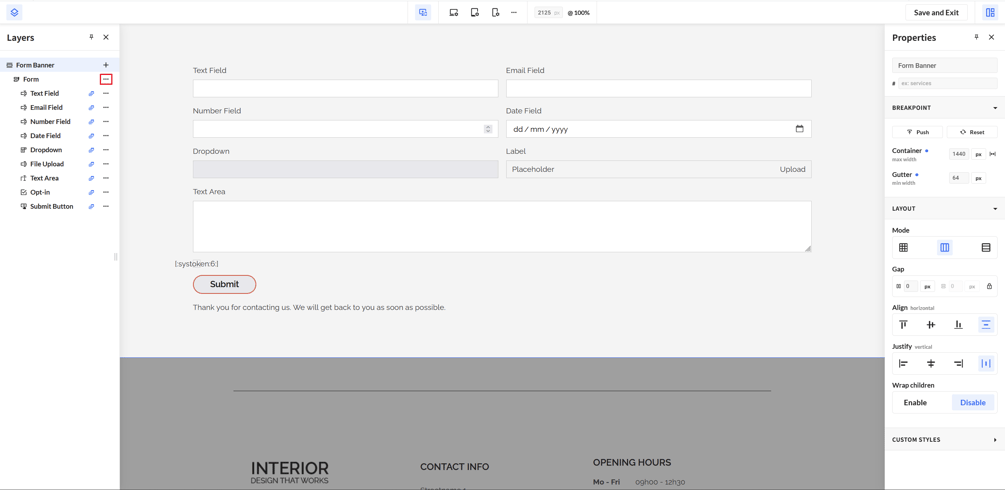
Next up, we need to click on the three dots next to form \> Add element
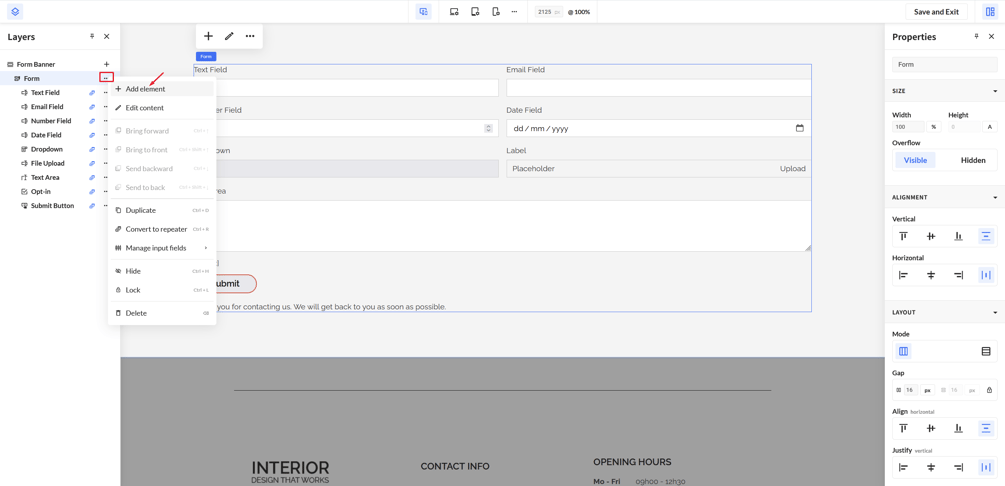
This will open a popup, in this popup navigate to Form Elements. At the end of the list, we'll find the block: hCaptcha. Click on the block to install it in your form
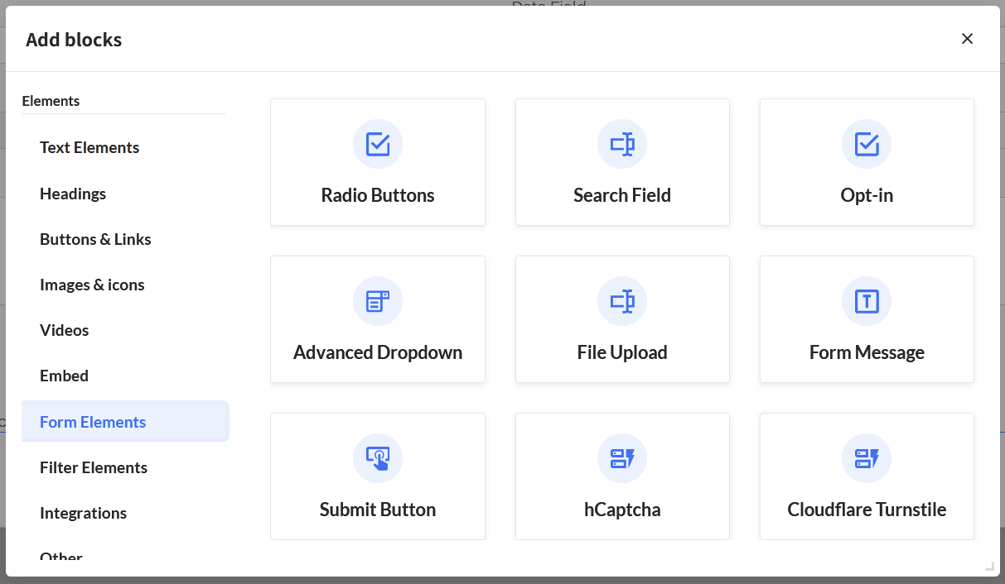
Click Save & Exit to exit the No-Code Editor. You can then continue adding the block to your form in the next step: Adding the new captcha
---
#### Code Editor
Only use this section if your form has been using the Code Editor. If you are not sure, check out the section above: No-Code vs Code
To add hCaptcha to your form using the Code Editor, click on the **Component Settings \> View Code**
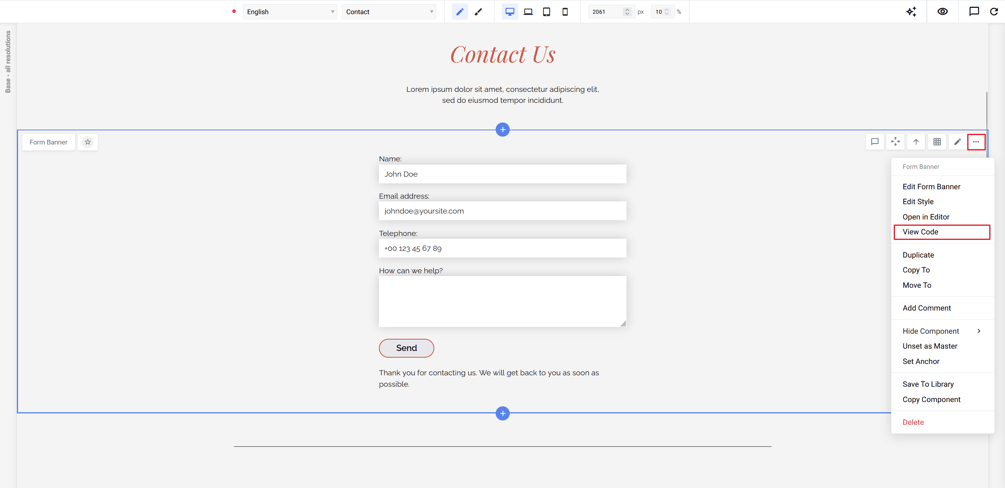
Once we are in the Code View, we'll continue by navigating to "Build Form"
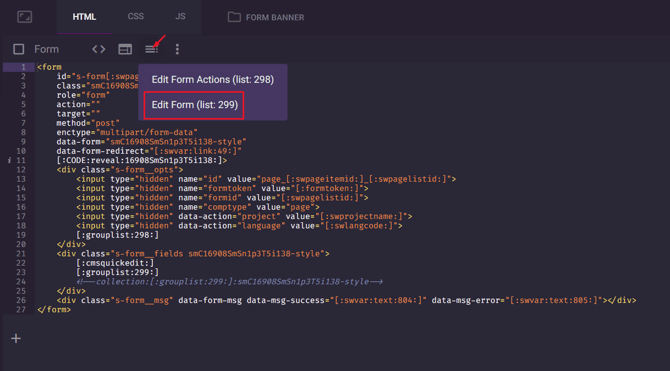
In this overview, you'll see all the blocks that you can already add to your form. We can add new blocks by clicking on the "+" button.
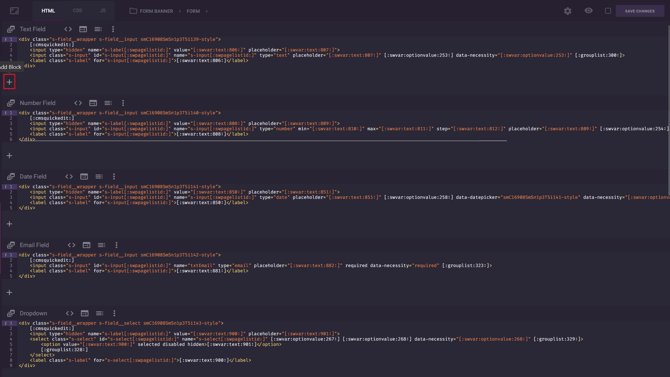
In our newly created block, we will click on "CMS configuration", on the right-hand side we'll search for the hCaptcha snippet.
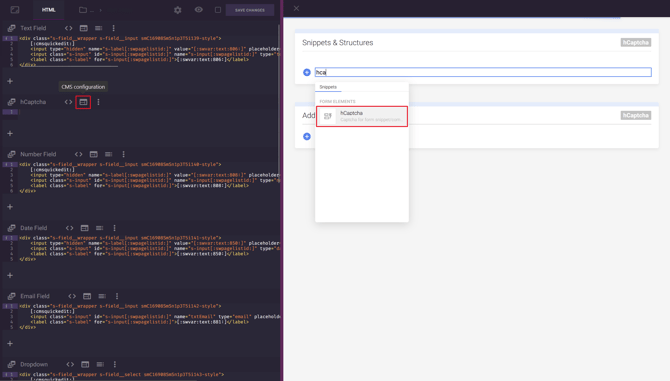
The snippet will add everything needed for hCpatcha to work. You can then click save changes, exit the Code Editor by clicking the SiteManager logo in the left corner of the screen and continue to the next step: Adding the new captcha
### Adding the new captcha
Once the previous steps are complete, we are done in the **Code View**. You can exit out of the Code View by clicking on the SiteManager Logo in the top left corner.
Let's go to a page with a form. To edit our form, click on the pencil icon.
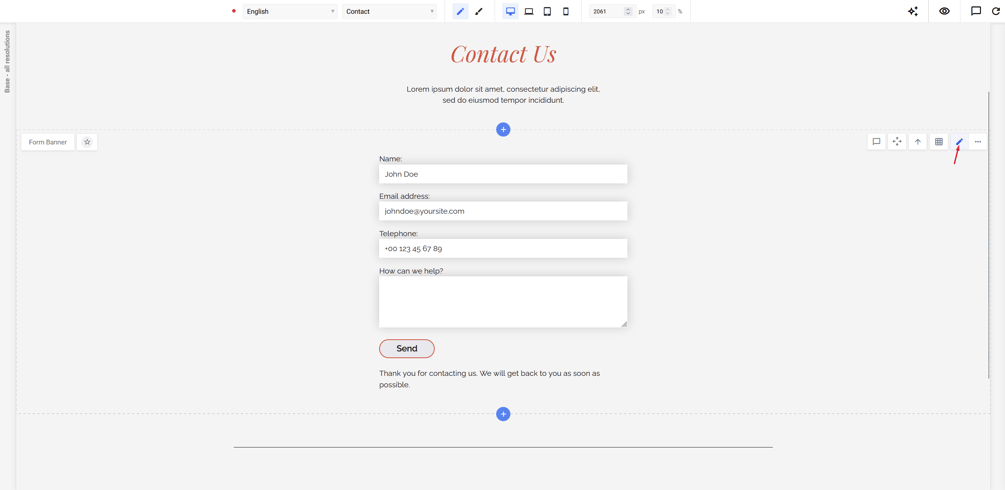
In this view we continue by clicking on **Edit Form**
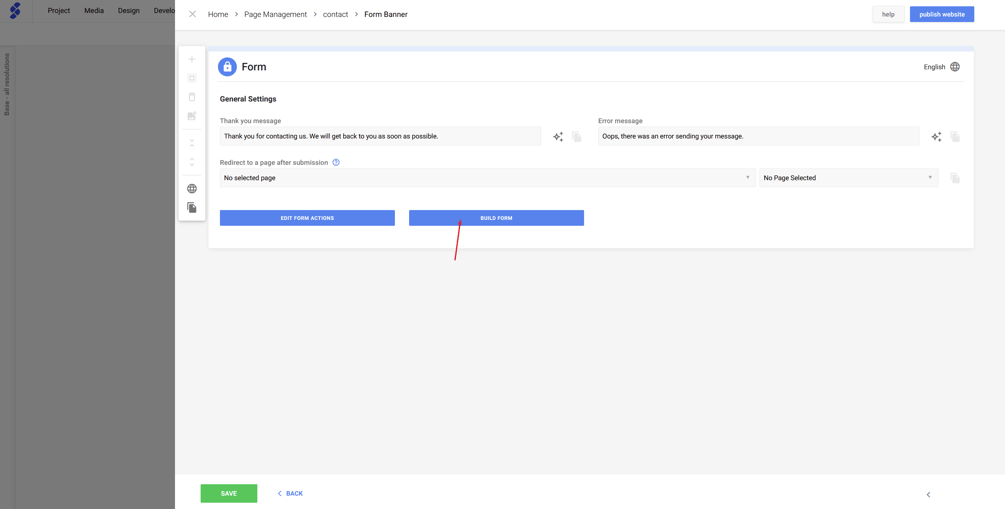
This will show us all the blocks that are already in this form
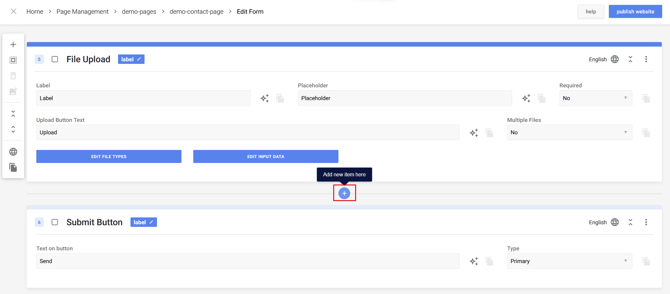
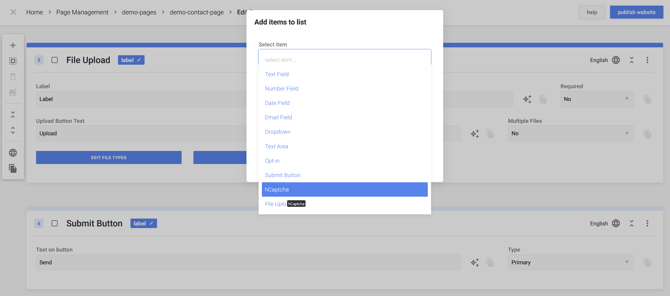
This will open a popup where we can find our newly created **hCaptcha block**
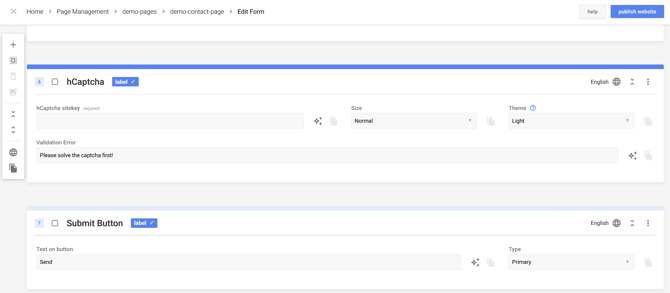
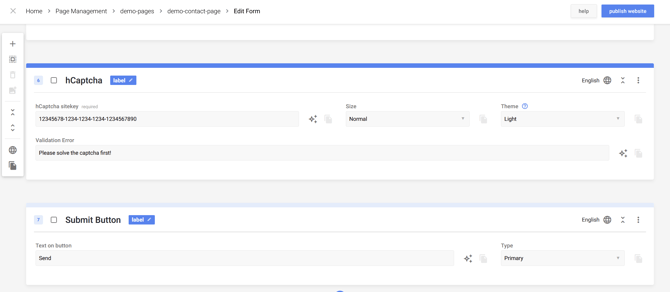
Once the hCaptcha field is added, we can enter the sitekey.
If you add a captcha field to your component, for example "Form w/ Content Banner", all other uses of this component will require a captcha to be able to submit.
### Site Key
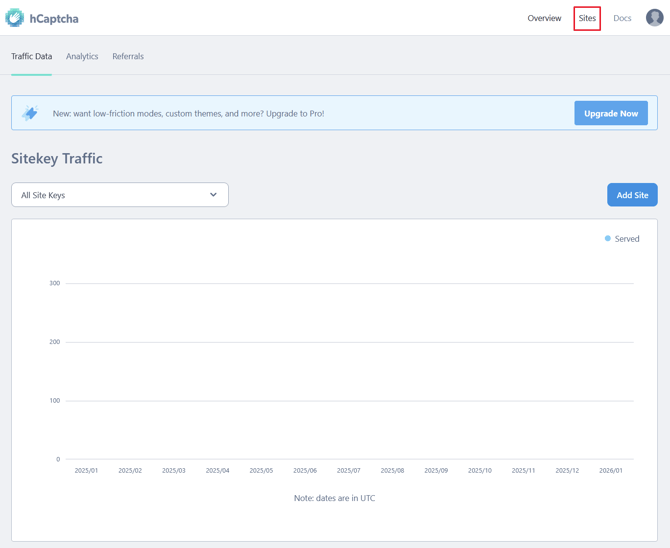
To find your Site Key, we go back to the dashboard in hCaptcha. Here we click on the tab: Sites
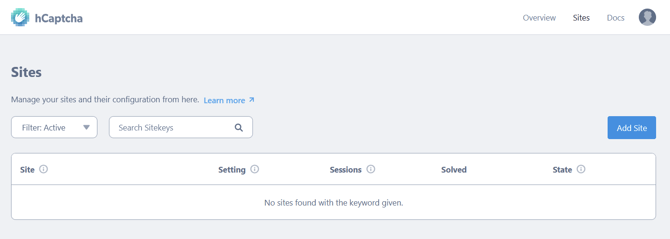
In this overview you can add a new site by clicking on **Add Site**
This will open the next screen, to fill in the basic information.
You don't need to add a domain, this is optional
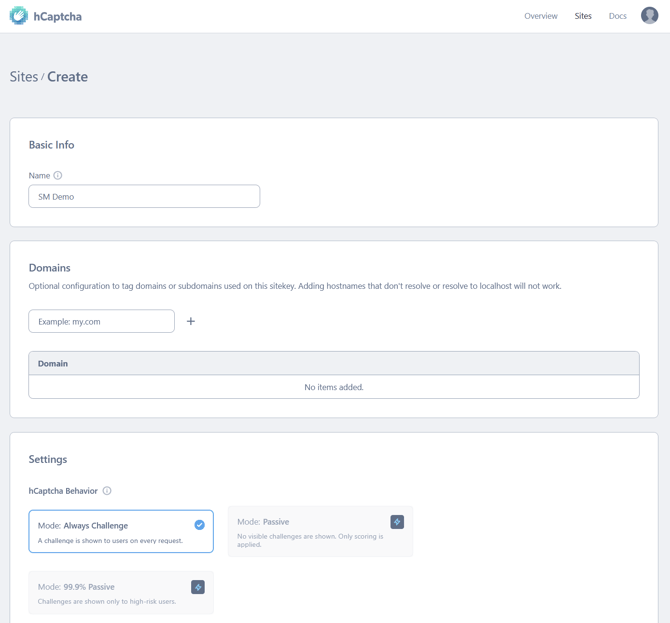
In the settings screen, you have the option to change the difficulty of the hCaptcha that the user will see
### 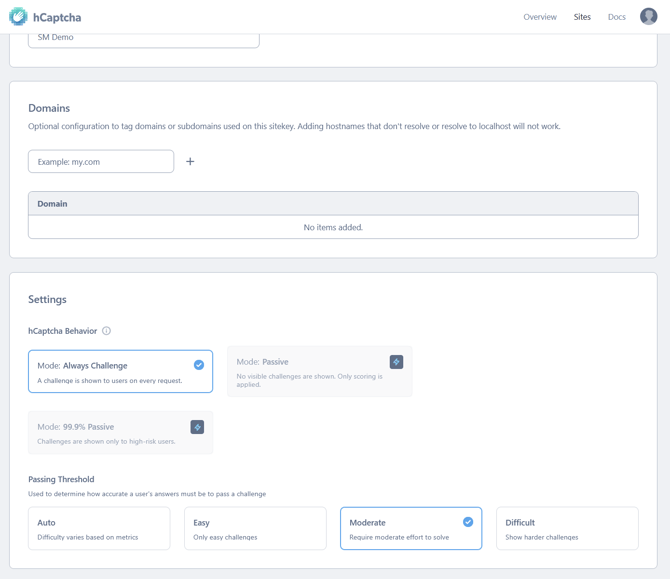
We can then click on **Save** \> **Finish**
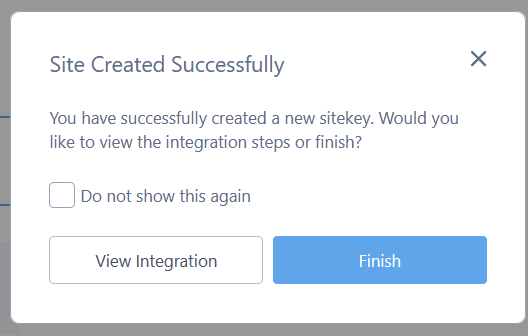
Your Site Key has been created, be sure to click on the icon to copy the site key
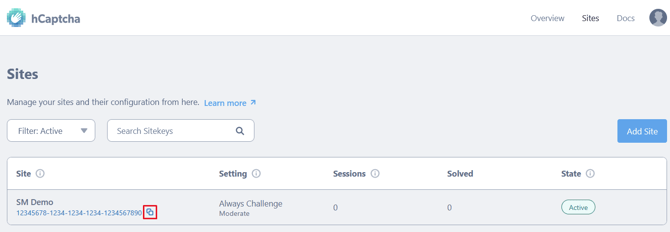
We can head over to SiteManager, and paste our Site Key in the empty field.
### Options
#### Size
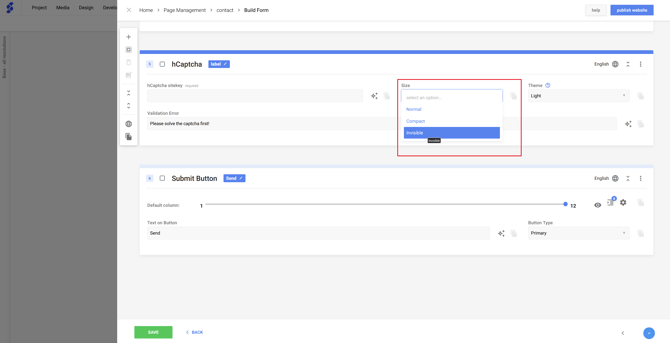
In this dropdown you can choose how the hCaptcha field is being shown, by default this will be set to "Normal". Other size options are: Compact & Invisible
To hide the hCaptcha, you can use the option **Invisible**. This is a new addition to the hCaptcha snippet.
**hCaptcha also has a premium feature (called passive mode) but this is not needed.**
If you have an existing hCaptcha, the option **Invisible** needs to be added manually.
#### Theme
You can also change how hCaptcha is being show. By default, this will use the "Light" mode.
Theme will not work when size has been set to **Invisible.**
### All done!
You successfully added a captcha to your form, don't forget to **publish** your changes!
- [Getting Started](https://support.sitemanager.io/en/getting-started?hsLang=en)
- [Dashboard](https://support.sitemanager.io/en/dashboard?hsLang=en#main-content)
- [Getting Started](https://support.sitemanager.io/en/dashboard?hsLang=en#getting-started)
- [Project Dashboard](https://support.sitemanager.io/en/dashboard?hsLang=en#project-dashboard)
- [White Label & Add-ons](https://support.sitemanager.io/en/dashboard?hsLang=en#white-label-add-ons)
- [Account](https://support.sitemanager.io/en/account?hsLang=en#main-content)
- [Account Settings](https://support.sitemanager.io/en/account?hsLang=en#account-settings)
- [My Company](https://support.sitemanager.io/en/account?hsLang=en#my-company)
- [Subscription](https://support.sitemanager.io/en/account?hsLang=en#subscription)
- [Project](https://support.sitemanager.io/en/project?hsLang=en#main-content)
- [General](https://support.sitemanager.io/en/project?hsLang=en#general)
- [Upgrade Project](https://support.sitemanager.io/en/project?hsLang=en#upgrade-project)
- [SEO](https://support.sitemanager.io/en/seo?hsLang=en#main-content)
- [Basics](https://support.sitemanager.io/en/seo?hsLang=en#basics)
- [Advanced](https://support.sitemanager.io/en/seo?hsLang=en#advanced)
- [Go Live](https://support.sitemanager.io/en/go-live?hsLang=en#main-content)
- [Prepare Project](https://support.sitemanager.io/en/go-live?hsLang=en#prepare-project)
- [Prepare Domain](https://support.sitemanager.io/en/go-live?hsLang=en#prepare-domain)
- [Going Live](https://support.sitemanager.io/en/go-live?hsLang=en#going-live)
- [Advanced](https://support.sitemanager.io/en/go-live?hsLang=en#advanced)
- [Content](https://support.sitemanager.io/en/content?hsLang=en#main-content)
- [Getting Started](https://support.sitemanager.io/en/content?hsLang=en#getting-started)
- [Page Management](https://support.sitemanager.io/en/content?hsLang=en#page-management)
- [Content Management](https://support.sitemanager.io/en/content?hsLang=en#content-management)
- [Language Management](https://support.sitemanager.io/en/content?hsLang=en#language-management)
- [Media Library](https://support.sitemanager.io/en/content?hsLang=en#media-library)
- [Collaborating on a project](https://support.sitemanager.io/en/content?hsLang=en#collaborating-on-a-project)
- [Page Components](https://support.sitemanager.io/en/page-components?hsLang=en#main-content)
- [Getting Started](https://support.sitemanager.io/en/page-components?hsLang=en#getting-started)
- [HTML](https://support.sitemanager.io/en/page-components?hsLang=en#html)
- [CSS](https://support.sitemanager.io/en/page-components?hsLang=en#css)
- [JavaScript (JS)](https://support.sitemanager.io/en/page-components?hsLang=en#javascript-js)
- [How To](https://support.sitemanager.io/en/page-components?hsLang=en#how-to)
- [Layout Components](https://support.sitemanager.io/en/layout-components?hsLang=en)
- [No-Code Editor](https://support.sitemanager.io/en/no-code-editor?hsLang=en#main-content)
- [Getting Started](https://support.sitemanager.io/en/no-code-editor?hsLang=en#getting-started)
- [Properties](https://support.sitemanager.io/en/no-code-editor?hsLang=en#properties)
- [Advanced](https://support.sitemanager.io/en/no-code-editor?hsLang=en#advanced)
- [Design](https://support.sitemanager.io/en/design?hsLang=en#main-content)
- [Overview](https://support.sitemanager.io/en/design?hsLang=en#overview)
- [Design editor](https://support.sitemanager.io/en/design?hsLang=en#design-editor)
- [Design Panels](https://support.sitemanager.io/en/design?hsLang=en#design-panels)
- [Responsive](https://support.sitemanager.io/en/design?hsLang=en#responsive)
- [Fonts](https://support.sitemanager.io/en/design?hsLang=en#fonts)
- [Layouts](https://support.sitemanager.io/en/design?hsLang=en#layouts)
- [Code](https://support.sitemanager.io/en/code?hsLang=en#main-content)
- [Introduction](https://support.sitemanager.io/en/code?hsLang=en#introduction)
- [Token Management](https://support.sitemanager.io/en/code?hsLang=en#token-management)
- [Project Setup](https://support.sitemanager.io/en/code?hsLang=en#project-setup)
- [ToolStack](https://support.sitemanager.io/en/code?hsLang=en#toolstack)
- [Private Library](https://support.sitemanager.io/en/code?hsLang=en#private-library)
- [Dynamic Content](https://support.sitemanager.io/en/dynamic-content?hsLang=en#main-content)
- [Getting started](https://support.sitemanager.io/en/dynamic-content?hsLang=en#getting-started)
- [Basics](https://support.sitemanager.io/en/dynamic-content?hsLang=en#basics)
- [Advanced](https://support.sitemanager.io/en/dynamic-content?hsLang=en#advanced)
- [External Content](https://support.sitemanager.io/en/external-content?hsLang=en#main-content)
- [Getting started](https://support.sitemanager.io/en/external-content?hsLang=en#getting-started)
- [Configuration & implementation](https://support.sitemanager.io/en/external-content?hsLang=en#configuration-implementation)
- [Logic (Smart Content)](https://support.sitemanager.io/en/logic-smart-content?hsLang=en#main-content)
- [Getting Started](https://support.sitemanager.io/en/logic-smart-content?hsLang=en#getting-started)
- [Configuration & Implementation](https://support.sitemanager.io/en/logic-smart-content?hsLang=en#configuration-implementation)
- [Logic](https://support.sitemanager.io/en/logic-smart-content?hsLang=en#logic)
- [AB testing](https://support.sitemanager.io/en/logic-smart-content?hsLang=en#ab-testing)
- [Timed Content](https://support.sitemanager.io/en/logic-smart-content?hsLang=en#timed-content)
- [Password Protected Content](https://support.sitemanager.io/en/logic-smart-content?hsLang=en#password-protected-content)
- [Smart API](https://support.sitemanager.io/en/logic-smart-content?hsLang=en#smart-api)
- [Integrations](https://support.sitemanager.io/en/integrations?hsLang=en#main-content)
- [Getting Started](https://support.sitemanager.io/en/integrations?hsLang=en#getting-started)
- [Integrations](https://support.sitemanager.io/en/integrations?hsLang=en#integrations)
- [Advanced](https://support.sitemanager.io/en/integrations?hsLang=en#advanced)
- [Modules](https://support.sitemanager.io/en/modules?hsLang=en#main-content)
- [Getting Started](https://support.sitemanager.io/en/modules?hsLang=en#getting-started)
- [Modules](https://support.sitemanager.io/en/modules?hsLang=en#modules)
- [Upgrade Center](https://support.sitemanager.io/en/upgrade-center?hsLang=en#main-content)
- [Components](https://support.sitemanager.io/en/upgrade-center?hsLang=en#components)
- [Forms](https://support.sitemanager.io/en/forms?hsLang=en#main-content)
- [General](https://support.sitemanager.io/en/forms?hsLang=en#general)
- [Captcha](https://support.sitemanager.io/en/forms?hsLang=en#captcha)
- [Form Actions](https://support.sitemanager.io/en/forms?hsLang=en#form-actions)
- [Extending Forms](https://support.sitemanager.io/en/forms?hsLang=en#extending-forms)
- [Email Templates](https://support.sitemanager.io/en/forms?hsLang=en#email-templates)
- [Advanced](https://support.sitemanager.io/en/forms?hsLang=en#advanced)
- [Cookie Settings](https://support.sitemanager.io/en/cookie-settings?hsLang=en#main-content)
- [Getting Started](https://support.sitemanager.io/en/cookie-settings?hsLang=en#getting-started)
- [Configuration](https://support.sitemanager.io/en/cookie-settings?hsLang=en#configuration)
- [API Call](https://support.sitemanager.io/en/api-call?hsLang=en#main-content)
- [Configuration](https://support.sitemanager.io/en/api-call?hsLang=en#configuration)
[](https://support.sitemanager.io/en?hsLang=en)
Copyright © 2026, SiteManager Group