---
title: How to setup StoryChief
description: Learn how to connect StoryChief to SiteManager, including prerequisites, setup steps, encryption key configuration, and finding your project name.
---
[Skip to content](https://support.sitemanager.io/en/integrations/how-to-setup-storychief#main-content)
[](https://support.sitemanager.io/en?hsLang=en)
Open main navigation
Close main navigation
- [Go to sitemanager.io](https://www.sitemanager.io/)
[Go to sitemanager.io](https://www.sitemanager.io/)
How can we help?
- There are no suggestions because the search field is empty.
1. [Knowledge Base](https://support.sitemanager.io/en?hsLang=en)
2. [Integrations](https://support.sitemanager.io/en/integrations?hsLang=en)
3. [Integrations](https://support.sitemanager.io/en/integrations?hsLang=en#integrations)
# How to setup StoryChief
- [Prerequisites](https://support.sitemanager.io/en/integrations/how-to-setup-storychief#prerequisites)
- [Installation](https://support.sitemanager.io/en/integrations/how-to-setup-storychief#installation)
- [How to find your Project Name](https://support.sitemanager.io/en/integrations/how-to-setup-storychief#how-to-find-your-project-name)
### Prerequisites
- [StoryChief API Key](https://help.storychief.io/en/articles/13913843-how-to-get-a-storychief-api-key)
- A live project with a domain name
- A new page in your project (which will serve as the StoryChief detail page)
### Installation
Install the StoryChief Integration in your project dashboard.
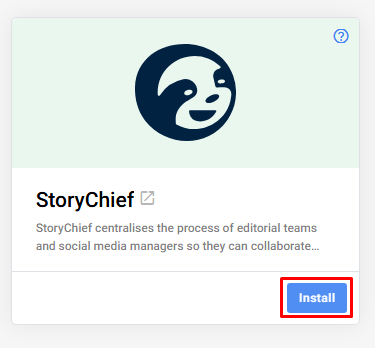
After installation, click on “**Connect**” and fill in your StoryChief API Key and select the new page you previously created in your project.
Once completed, we will retrieve the Encryption Key from StoryChief.
Head over to StoryChief, where we will then navigate to the SiteManager integration, click "**Add new destination**.”
.png?width=670&height=242&name=image(1).png)
You will then see your new Encryption Key:
.png?width=670&height=482&name=image(2).png)
Copy the Encryption Key and paste it into the Encryption Key field in SiteManager.
**Important:** Do NOT save these settings before you finish setting up your StoryChief Integration in SiteManager.
.png?width=530&height=488&name=image(3).png)
After filling in all the fields, you can continue and click “**Connect**”.
Now your project is ready to start receiving StoryChief articles!
Go back to the new StoryChief SiteManager Destination we created and fill in your **project name** in the SiteManager website field and press “**Save settings**”.
After saving these settings StoryChief will be able to send articles to SiteManager.
### How to find your Project Name
To find your project name we have to navigate to the **General Settings** of our project
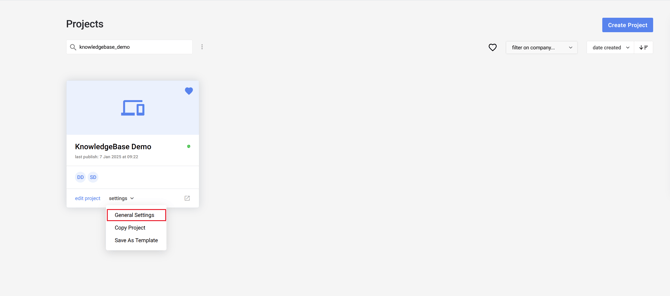
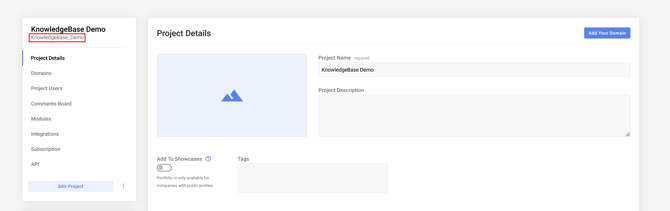
On the left hand side you can find 2 names:
- project label
- project name
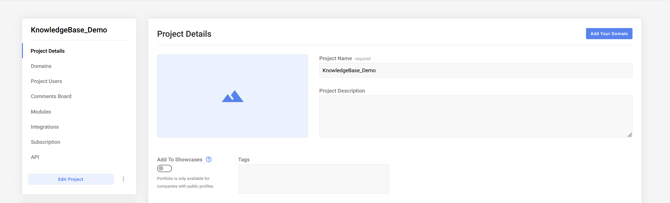
**Note**: If your project label and project name are identical, only the project label will be visible.
In this situation, you can use the project label as the value for the SiteManager website field in StoryChief
- [Getting Started](https://support.sitemanager.io/en/getting-started?hsLang=en)
- [Dashboard](https://support.sitemanager.io/en/dashboard?hsLang=en#main-content)
- [Getting Started](https://support.sitemanager.io/en/dashboard?hsLang=en#getting-started)
- [Project Dashboard](https://support.sitemanager.io/en/dashboard?hsLang=en#project-dashboard)
- [White Label & Add-ons](https://support.sitemanager.io/en/dashboard?hsLang=en#white-label-add-ons)
- [Account](https://support.sitemanager.io/en/account?hsLang=en#main-content)
- [Account Settings](https://support.sitemanager.io/en/account?hsLang=en#account-settings)
- [My Company](https://support.sitemanager.io/en/account?hsLang=en#my-company)
- [Subscription](https://support.sitemanager.io/en/account?hsLang=en#subscription)
- [Project](https://support.sitemanager.io/en/project?hsLang=en#main-content)
- [General](https://support.sitemanager.io/en/project?hsLang=en#general)
- [Upgrade Project](https://support.sitemanager.io/en/project?hsLang=en#upgrade-project)
- [SEO](https://support.sitemanager.io/en/seo?hsLang=en#main-content)
- [Basics](https://support.sitemanager.io/en/seo?hsLang=en#basics)
- [Advanced](https://support.sitemanager.io/en/seo?hsLang=en#advanced)
- [Go Live](https://support.sitemanager.io/en/go-live?hsLang=en#main-content)
- [Prepare Project](https://support.sitemanager.io/en/go-live?hsLang=en#prepare-project)
- [Prepare Domain](https://support.sitemanager.io/en/go-live?hsLang=en#prepare-domain)
- [Going Live](https://support.sitemanager.io/en/go-live?hsLang=en#going-live)
- [Advanced](https://support.sitemanager.io/en/go-live?hsLang=en#advanced)
- [Content](https://support.sitemanager.io/en/content?hsLang=en#main-content)
- [Getting Started](https://support.sitemanager.io/en/content?hsLang=en#getting-started)
- [Page Management](https://support.sitemanager.io/en/content?hsLang=en#page-management)
- [Content Management](https://support.sitemanager.io/en/content?hsLang=en#content-management)
- [Language Management](https://support.sitemanager.io/en/content?hsLang=en#language-management)
- [Media Library](https://support.sitemanager.io/en/content?hsLang=en#media-library)
- [Collaborating on a project](https://support.sitemanager.io/en/content?hsLang=en#collaborating-on-a-project)
- [Page Components](https://support.sitemanager.io/en/page-components?hsLang=en#main-content)
- [Getting Started](https://support.sitemanager.io/en/page-components?hsLang=en#getting-started)
- [HTML](https://support.sitemanager.io/en/page-components?hsLang=en#html)
- [CSS](https://support.sitemanager.io/en/page-components?hsLang=en#css)
- [JavaScript (JS)](https://support.sitemanager.io/en/page-components?hsLang=en#javascript-js)
- [How To](https://support.sitemanager.io/en/page-components?hsLang=en#how-to)
- [Layout Components](https://support.sitemanager.io/en/layout-components?hsLang=en)
- [No-Code Editor](https://support.sitemanager.io/en/no-code-editor?hsLang=en#main-content)
- [Getting Started](https://support.sitemanager.io/en/no-code-editor?hsLang=en#getting-started)
- [Properties](https://support.sitemanager.io/en/no-code-editor?hsLang=en#properties)
- [Advanced](https://support.sitemanager.io/en/no-code-editor?hsLang=en#advanced)
- [Design](https://support.sitemanager.io/en/design?hsLang=en#main-content)
- [Overview](https://support.sitemanager.io/en/design?hsLang=en#overview)
- [Design editor](https://support.sitemanager.io/en/design?hsLang=en#design-editor)
- [Design Panels](https://support.sitemanager.io/en/design?hsLang=en#design-panels)
- [Responsive](https://support.sitemanager.io/en/design?hsLang=en#responsive)
- [Fonts](https://support.sitemanager.io/en/design?hsLang=en#fonts)
- [Layouts](https://support.sitemanager.io/en/design?hsLang=en#layouts)
- [Code](https://support.sitemanager.io/en/code?hsLang=en#main-content)
- [Introduction](https://support.sitemanager.io/en/code?hsLang=en#introduction)
- [Token Management](https://support.sitemanager.io/en/code?hsLang=en#token-management)
- [Project Setup](https://support.sitemanager.io/en/code?hsLang=en#project-setup)
- [ToolStack](https://support.sitemanager.io/en/code?hsLang=en#toolstack)
- [Private Library](https://support.sitemanager.io/en/code?hsLang=en#private-library)
- [Dynamic Content](https://support.sitemanager.io/en/dynamic-content?hsLang=en#main-content)
- [Getting started](https://support.sitemanager.io/en/dynamic-content?hsLang=en#getting-started)
- [Basics](https://support.sitemanager.io/en/dynamic-content?hsLang=en#basics)
- [Advanced](https://support.sitemanager.io/en/dynamic-content?hsLang=en#advanced)
- [External Content](https://support.sitemanager.io/en/external-content?hsLang=en#main-content)
- [Getting started](https://support.sitemanager.io/en/external-content?hsLang=en#getting-started)
- [Configuration & implementation](https://support.sitemanager.io/en/external-content?hsLang=en#configuration-implementation)
- [Logic (Smart Content)](https://support.sitemanager.io/en/logic-smart-content?hsLang=en#main-content)
- [Getting Started](https://support.sitemanager.io/en/logic-smart-content?hsLang=en#getting-started)
- [Configuration & Implementation](https://support.sitemanager.io/en/logic-smart-content?hsLang=en#configuration-implementation)
- [Logic](https://support.sitemanager.io/en/logic-smart-content?hsLang=en#logic)
- [AB testing](https://support.sitemanager.io/en/logic-smart-content?hsLang=en#ab-testing)
- [Timed Content](https://support.sitemanager.io/en/logic-smart-content?hsLang=en#timed-content)
- [Password Protected Content](https://support.sitemanager.io/en/logic-smart-content?hsLang=en#password-protected-content)
- [Smart API](https://support.sitemanager.io/en/logic-smart-content?hsLang=en#smart-api)
- [Integrations](https://support.sitemanager.io/en/integrations?hsLang=en#main-content)
- [Getting Started](https://support.sitemanager.io/en/integrations?hsLang=en#getting-started)
- [Integrations](https://support.sitemanager.io/en/integrations?hsLang=en#integrations)
- [Advanced](https://support.sitemanager.io/en/integrations?hsLang=en#advanced)
- [Modules](https://support.sitemanager.io/en/modules?hsLang=en#main-content)
- [Getting Started](https://support.sitemanager.io/en/modules?hsLang=en#getting-started)
- [Modules](https://support.sitemanager.io/en/modules?hsLang=en#modules)
- [Upgrade Center](https://support.sitemanager.io/en/upgrade-center?hsLang=en#main-content)
- [Components](https://support.sitemanager.io/en/upgrade-center?hsLang=en#components)
- [Forms](https://support.sitemanager.io/en/forms?hsLang=en#main-content)
- [General](https://support.sitemanager.io/en/forms?hsLang=en#general)
- [Captcha](https://support.sitemanager.io/en/forms?hsLang=en#captcha)
- [Form Actions](https://support.sitemanager.io/en/forms?hsLang=en#form-actions)
- [Extending Forms](https://support.sitemanager.io/en/forms?hsLang=en#extending-forms)
- [Email Templates](https://support.sitemanager.io/en/forms?hsLang=en#email-templates)
- [Advanced](https://support.sitemanager.io/en/forms?hsLang=en#advanced)
- [Cookie Settings](https://support.sitemanager.io/en/cookie-settings?hsLang=en#main-content)
- [Getting Started](https://support.sitemanager.io/en/cookie-settings?hsLang=en#getting-started)
- [Configuration](https://support.sitemanager.io/en/cookie-settings?hsLang=en#configuration)
- [API Call](https://support.sitemanager.io/en/api-call?hsLang=en#main-content)
- [Configuration](https://support.sitemanager.io/en/api-call?hsLang=en#configuration)
[](https://support.sitemanager.io/en?hsLang=en)
Copyright © 2026, SiteManager Group