
How to enable the Txt Files Module
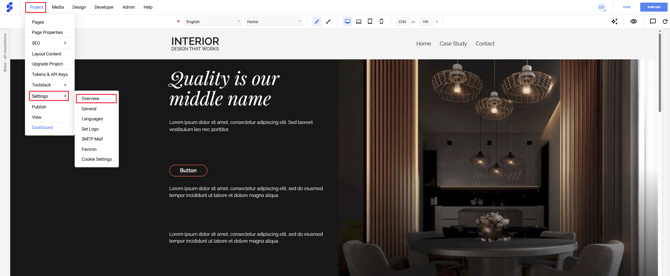
In our project, we navigate to Project > Settings > Overview
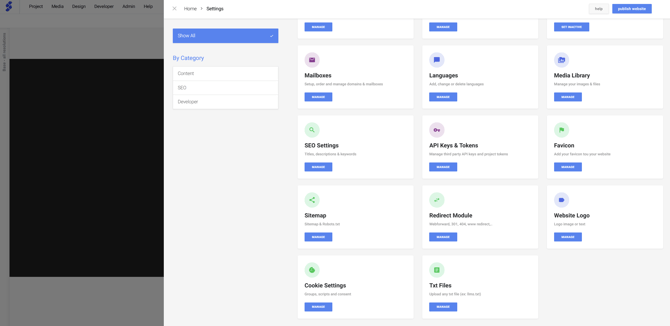
In the settings overview, at the bottom we can find Txt Files
When first accessing this module, you'll see a Activation notice to enable txt file uploads. Click on Activate to continue

How to upload files to the root of your website
After activating the module, you'll see an overview, in this overview you will be able to see which txt files you have already uploaded. To upload a new txt file, click Upload New.
When you have uploaded the needed files, publish your website.
LLM's Files
To improve how AI reads your website, you can add a file to your website which will help AI to interpret the content from your website
In most examples, two files are being used: llms.txt & llms-full.txt
llms.txt:
An executive summary of the site's key resources. It is the first stop for the AI and should be brief and direct.
llms-full.txt (Optional):
A file that includes more extensive information linked from the main file, to offer more details without saturating the initial context window.
LLM's require the correct naming, be sure to use llms.txt & llms-full.txt for the correct file