![SM_Platform-logo.png]](https://support.sitemanager.io/hs-fs/hubfs/SM_Platform-logo.png?height=40&name=SM_Platform-logo.png)
- You will need
- Important
- First Steps
- Finalizing Widget Setup
- Installing the Integration
- Secret Key & Site Key
- Upgrading your form
- Adding the new captcha
You will need
- A SiteManager Form (from our Platform Library or Snippet)
- An account on Cloudflare
Important
Cloudflare Turnstile will not work in older forms! An older form usually has the ID custom_form[:swpageitemid:] while a newer form will have the ID s-form[:swpageitemid:]_[:swpagelistid:]
First Steps
Our first step will be to head over to Cloudflare and create an account.
If you already have an account you can skip this step and continue on the next step
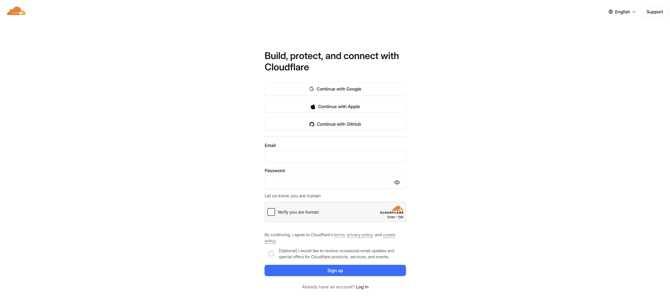
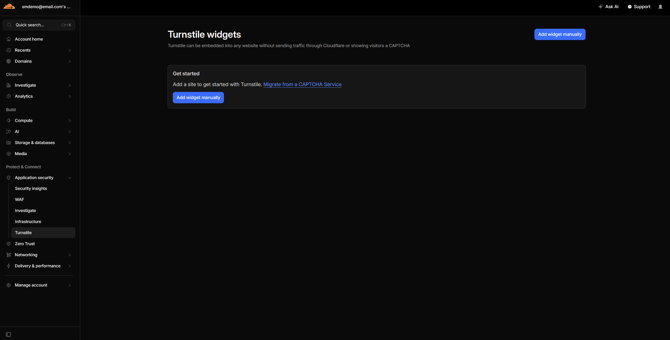
After signing up / logging in you'll see the Turnstile Widgets page, here we click on Add widget manually
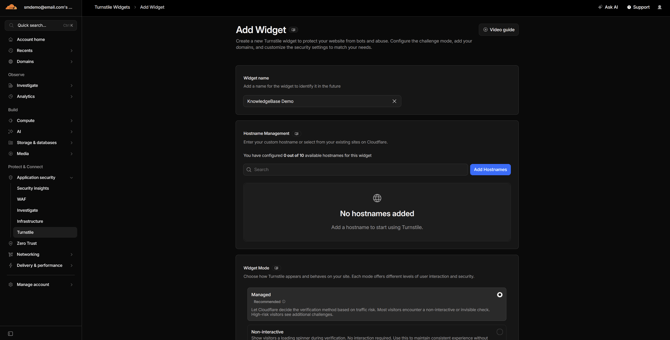
For the creation of our widget we need to fill out some information:
Widget mode
In this field we need to give our widget a name. In this example we will use the name of our project in SiteManager.

Hostname Management
The next section is where we will select our domain.
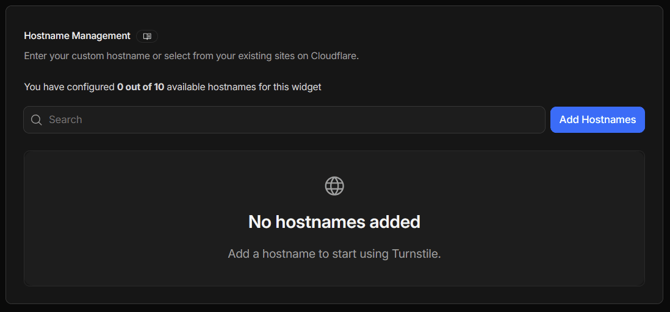
If you haven't added a hostname yet, you can do so by clicking Add Hostnames
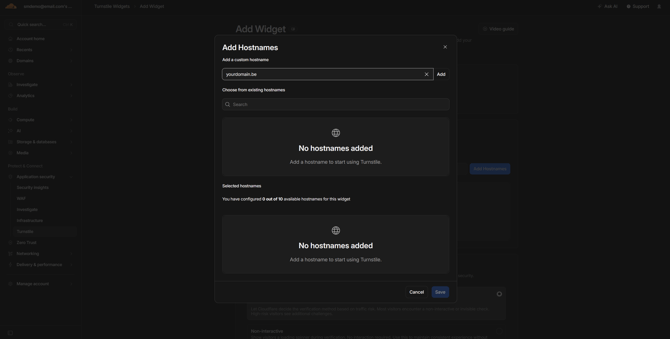
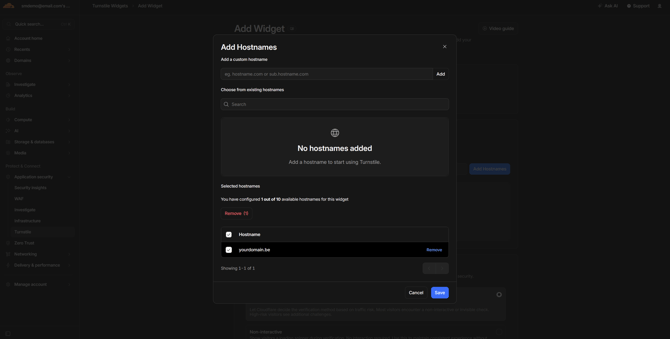
Add your domain in the first field and click Add. This will add your domain in the hostname list. Select your domain in the Selected Hostname list and click Save.
You can't add the sitemn.gr/yourprojectname as a domain.
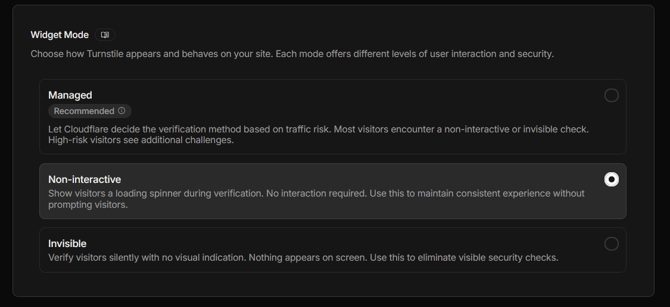
Widget Mode
You'll notice, there are 3 availble modes for our widget: Managed, Non-interactive, Invisible. For this guide, let's choose Non-interactive.
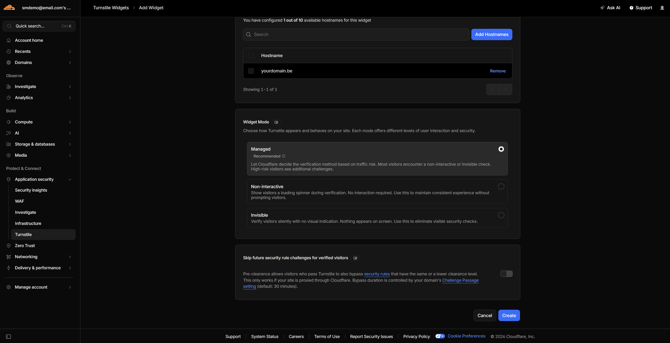
Finalizing Widget Setup
When you have added your domain & selected the widget you want to use, click Create
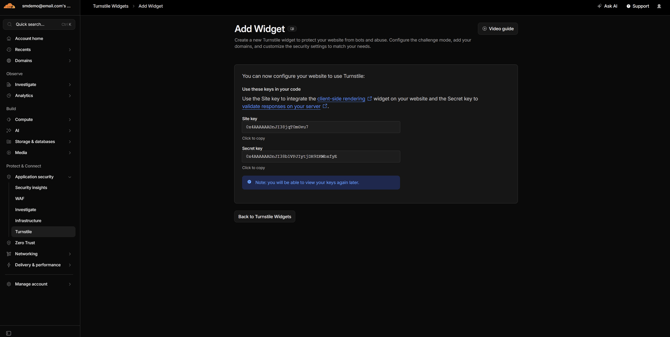
This will show you the Secret Key & Site Key that we will need to setup the Integration in SiteManager
Installing the integration
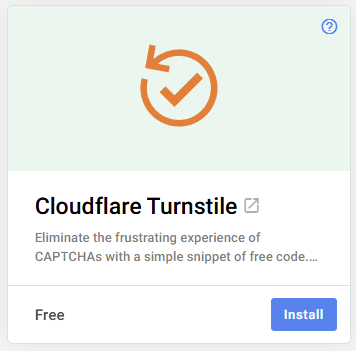
When we have setup our widget in Cloudflare, the next step is to install the Cloudflare Turnstile Integration from the Integrations Overview.
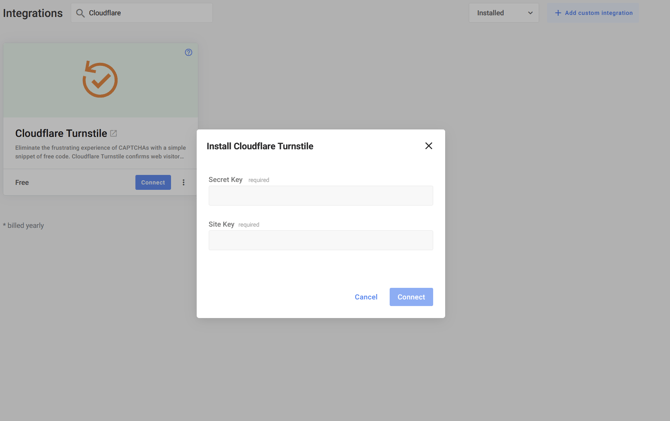
After installing the integration, click on Connect to open the popup.
Secret Key & Site Key
In the popup, we will need to fill in our Secret Key & Site Key that we got when setting up our widget. When filled in, we can click Connect to finish setting up the integration!
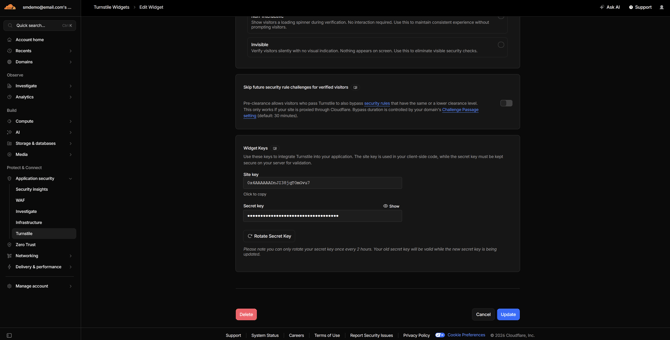
In Cloudflare you can view both keys at any time, you can find them again by clicking Edit Widget
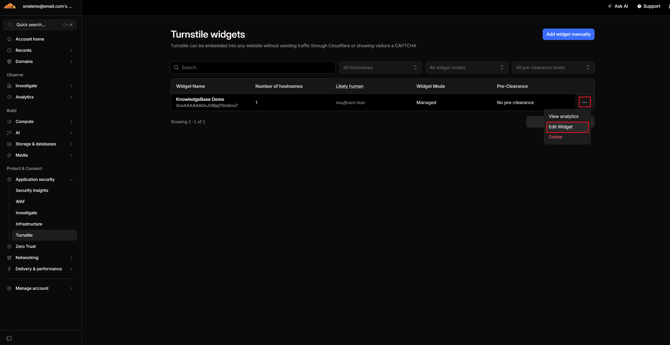
At the bottom of the page, you can find your Site Key. To view your Secret Key, click on View
Upgrading your form
Next up, is upgrading your form with the Cloudflare Turnstile field. To upgrade an existing form component, you have two options (click on the name to be taken to the section that applies to your form):
-
No‑code Editor: If the form was created using the no-code editor or added from the project library.
-
Code Editor: If the form has been created using the Code Editor
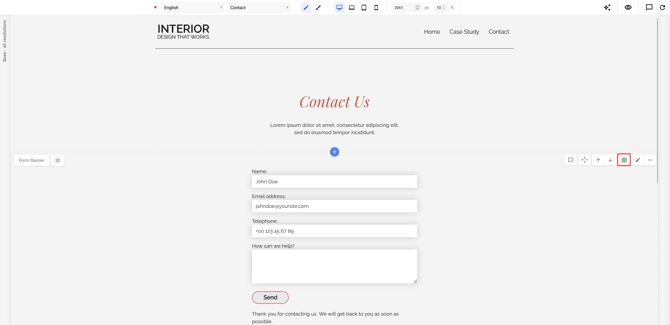
To know which type of form you have, we can click on the No-Code Editor icon as shown in the image below.
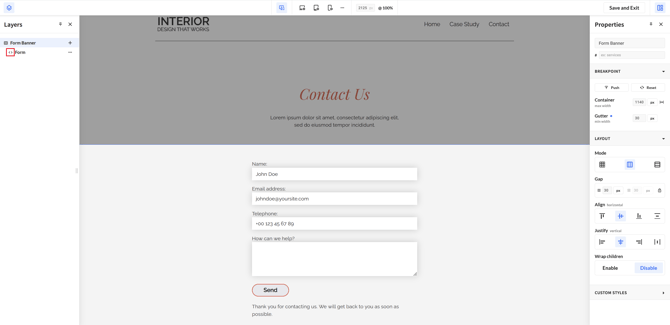
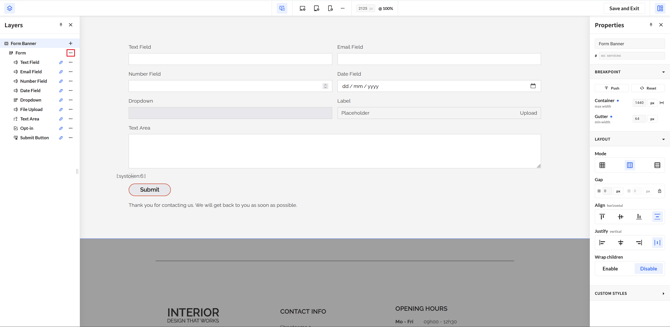
In the No-Code Editor, you'll see a block named Form on the left side in the Layers panels. A Form that has been made usng the Code Editor, will have this icon in front of it: "<>".
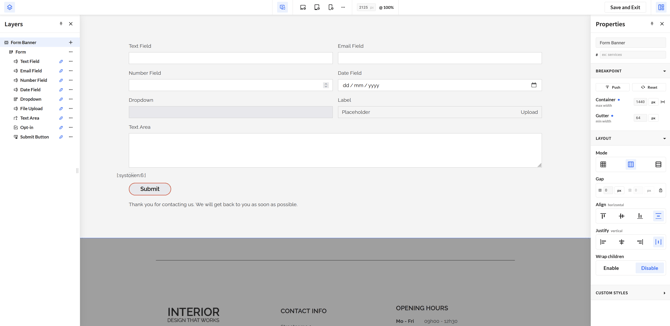
If your component has been using no-code editor, you'll see the form fields like in the image below.
No-Code Editor
Only use this section if your form has been using the No-Code Editor or if it has been installed from the Platform Library. If you are not sure, check out the section above: No-Code vs Code
To add Cloudflare Turnstile to your form using the No-Code Editor, click on the No-Code Editor icon.
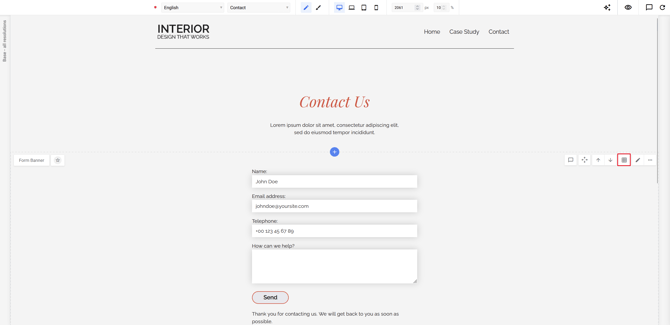
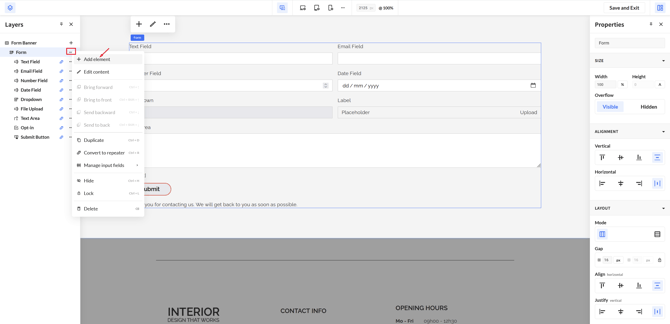
Next up, we need to click on the three dots next to form > Add element
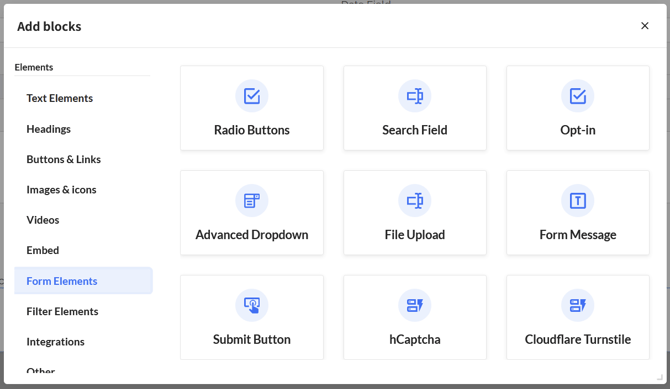
This will open a popup, in this popup navigate to Form Elements. At the end of the list, we'll find the block: Cloudflare Turnstile. Click on the block to install it in your form
Click Save & Exit to exit the No-Code Editor. You can then continue adding the block to your form in the next step: Adding the new captcha
Code Editor
Only use this section if your form has been using the Code Editor. If you are not sure, check out the section above: No-Code vs Code
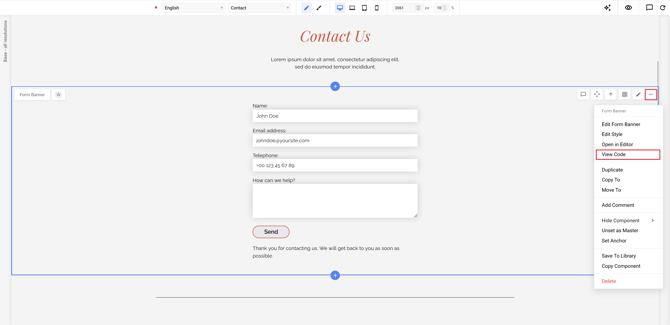
To add Cloudflare Turnstile to your form using the Code Editor, click on the Component Settings > View Code
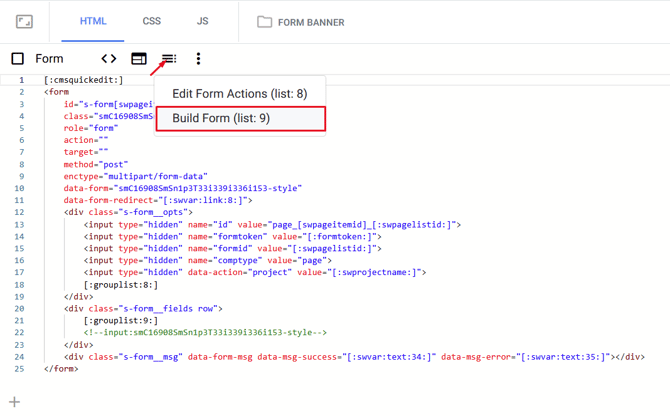
Once we are in the Code View, we'll continue by navigating to "Build Form"
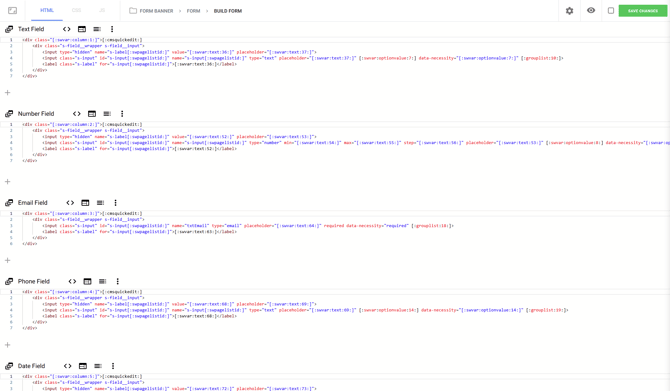
In this overview, you'll see all the blocks that you can already add to your form. We can add new blocks by clicking on the "+" button.
In our newly created block, we will click on "CMS configuration", then on the right-hand side we'll search for the Cloudflare Turnstile snippet.
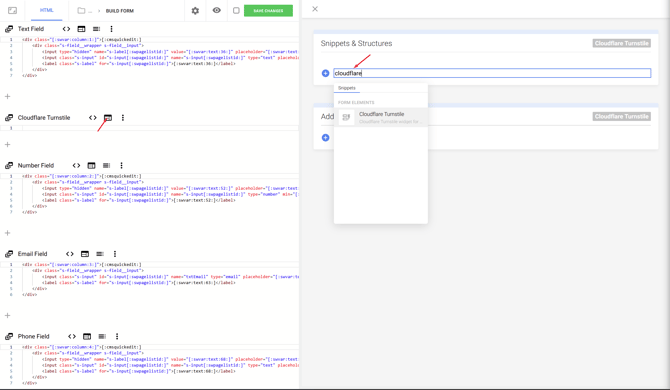
The snippet will add everything needed for Cloudflare Turnstile to work. You can then click save changes, exit the Code Editor by clicking the SiteManager logo in the left corner of the screen and continue to the next step: Adding the new captcha
Adding the new captcha
Once the previous steps are complete, we are done in the Code View. You can exit out of the Code View by clicking on the SiteManager Logo in the top left corner.
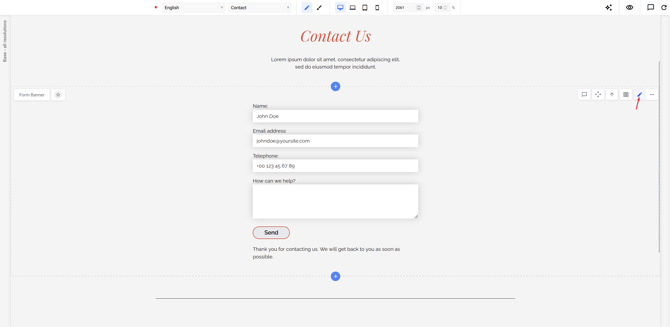
Let's go to a page with a form. To edit our form, click on the pencil icon.
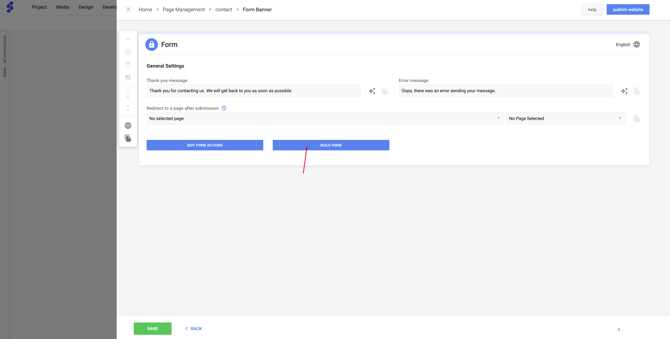
In this view we continue by clicking on Build Form
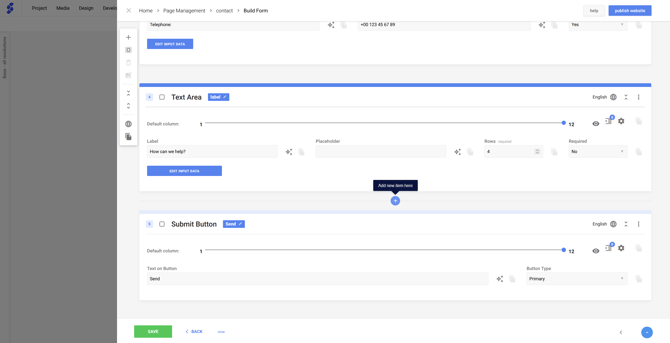
This will show us all the blocks that are already in this form, let's click the plus icon to add in a new block above the submit button.
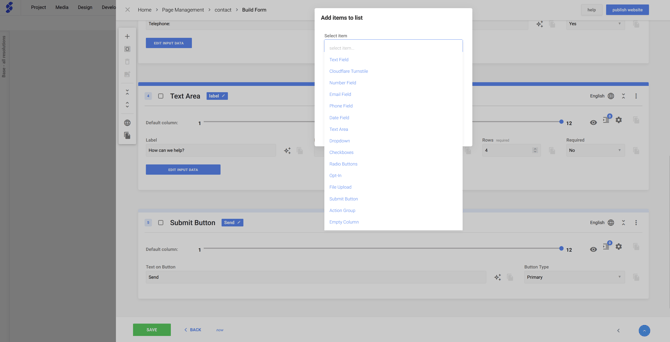
This will open a popup where we can find our newly created Cloudflare Turnstile block
Once the Cloudflare Turnstile block has been added, the widget has been added to your form!
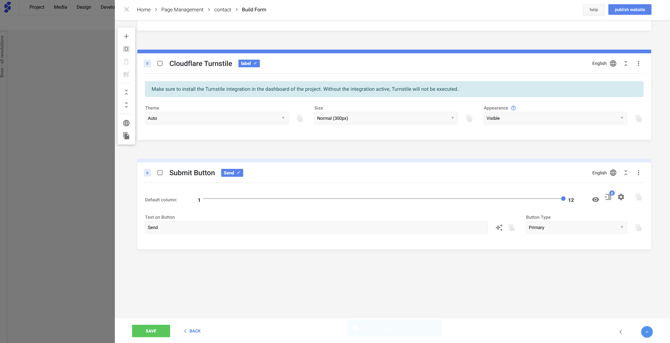
All done!
You successfully added Cloudflare Turnstile to your form, don't forget to publish your changes!