![SM_Platform-logo.png]](https://support.sitemanager.io/hs-fs/hubfs/SM_Platform-logo.png?height=40&name=SM_Platform-logo.png)
- You will need
- Important
- First Steps
- Secret Key
- Upgrading your form
- Adding the new captcha
- Site Key
- Options
You will need
- A SiteManager Form (from our Platform Library or Snippet)
- An account on hCaptcha
Important
hCaptcha will not work in older forms! An older form usually has the ID custom_form[:swpageitemid:] while a newer form will have the ID s-form[:swpageitemid:]_[:swpagelistid:]
hCaptcha needs 2 keys to work: Site key & Secret key. These keys are different from each other. Make sure to use them in the correct place
First Steps
Our first step will be installing the hCaptcha Integration from the Integrations Overview.

Secret Key
After the installation, we'll need our Secret Key. To find this key, we'll go to the hCaptcha.
In this dashboard we click on our profile image > Settings.
To go to the settings page, you can use this link
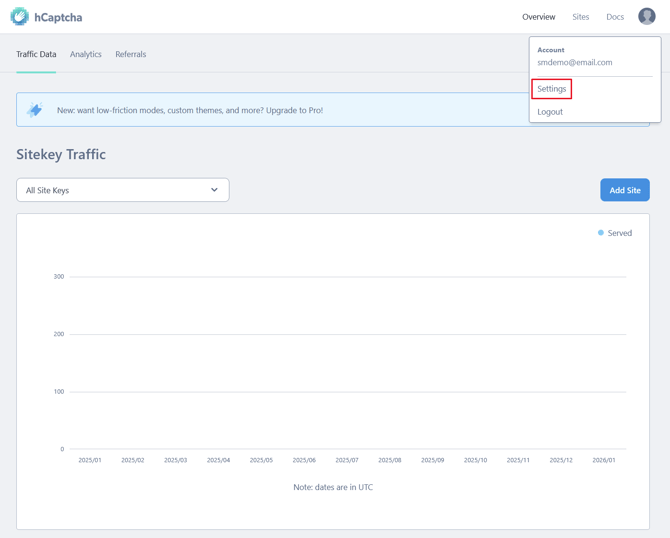
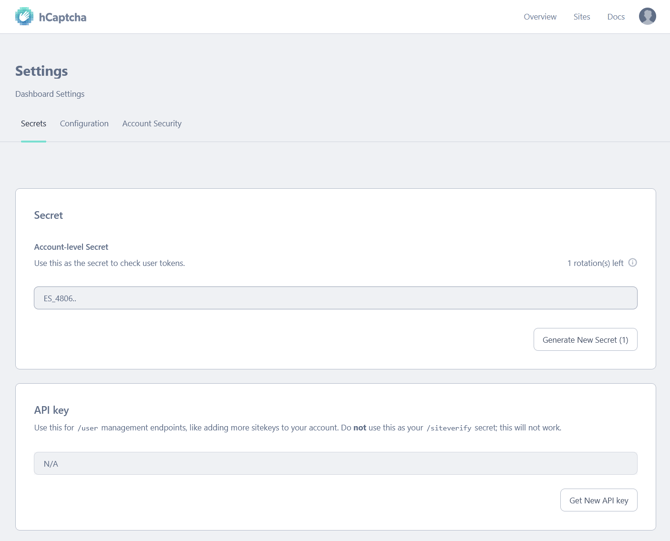
In the settings, you'll find a section with the secret key.
This will only show a part of the secret key! If needed you can change this key by clicking on Generate New Secret.
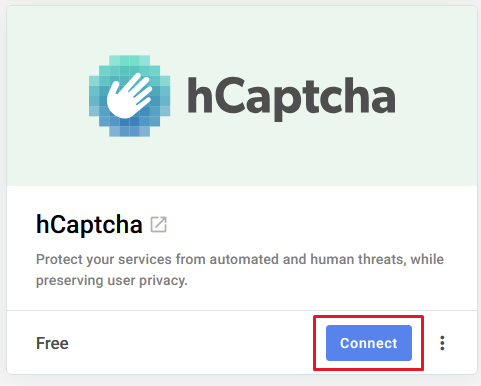
Once we have our secret key, we can go back to SiteManager and click the Connect button.
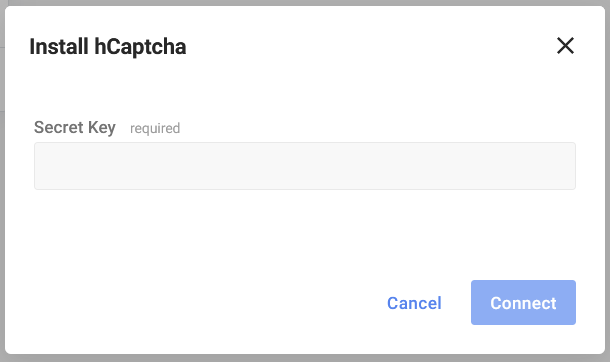
This will show us a popup where we have to paste our Secret Key.
Upgrading your form
If there already is a Captcha field available in your form, and you just want to know how to set it up, you can continue to the next step.
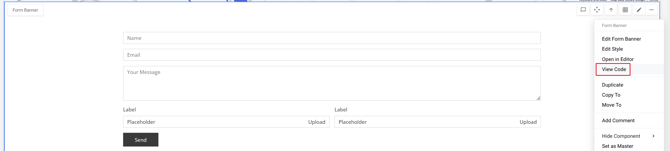
Next up, is upgrading your form with a captcha field. To upgrade an existing form component, we need to navigate to the Code View by clicking on the 3 dots > View Code
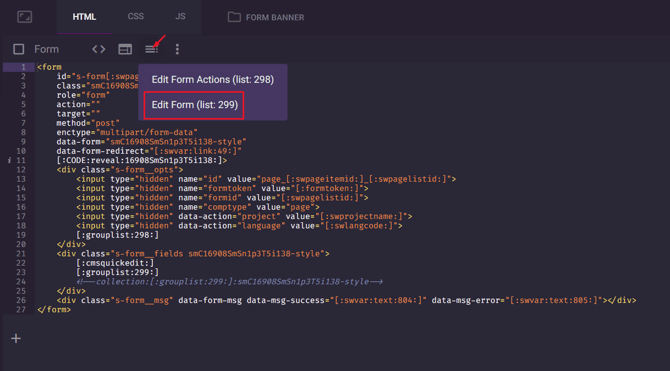
Once we are in the Code View, we'll continue by navigating to "Build Form"
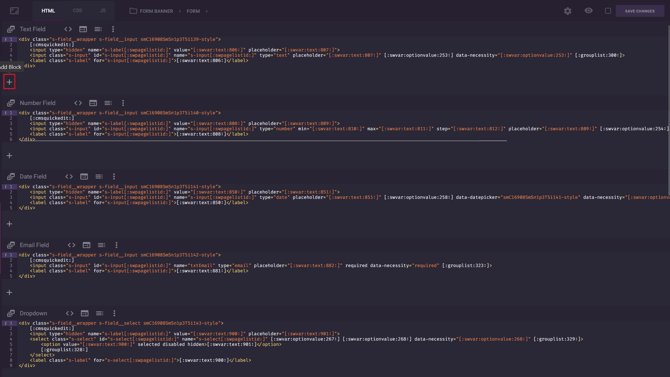
In this overview, you'll see all the blocks that you can already add to your form. We can add new blocks by clicking on the "+" button.
In our newly created block, we will click on "CMS configuration", on the right-hand side we'll search for the hCaptcha snippet.
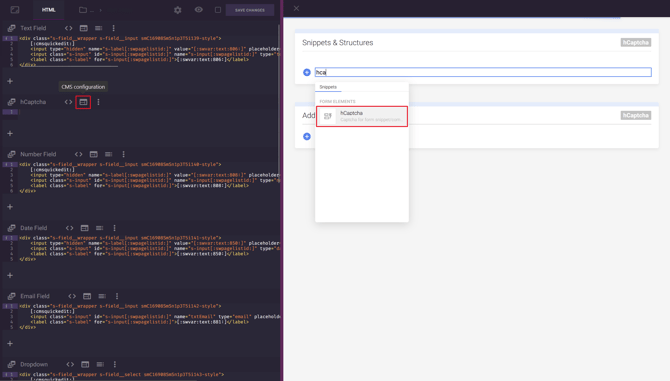
The snippet will set up the required fields for hCaptcha
Adding the new captcha
Once the previous steps are complete, we are done in the Code View. You can exit out of the Code View by clicking on the SiteManager Logo in the top left corner.
Let's go to a page with a form. To edit our form, click on the pencil icon.
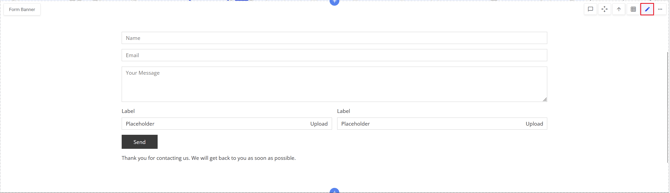
In this view we continue by clicking on Edit Form
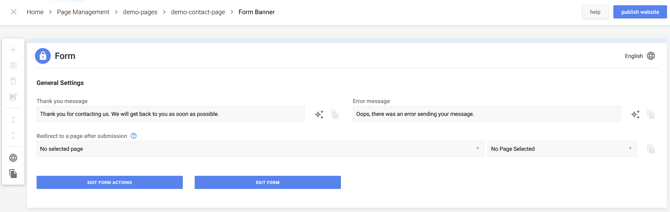
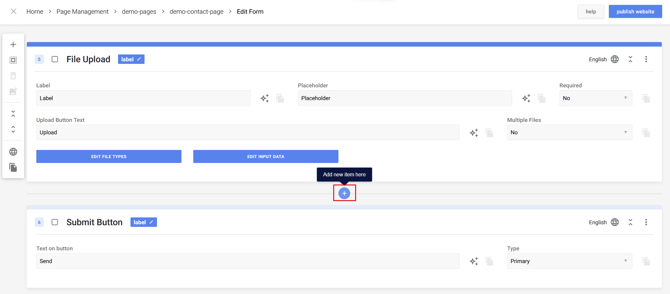
This will show us all the blocks that are already in this form
This will open a popup where we can find our newly created hCaptcha block
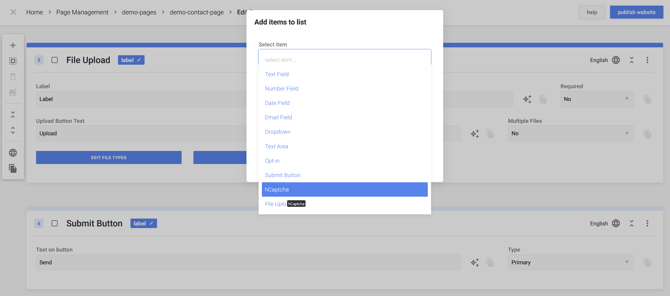
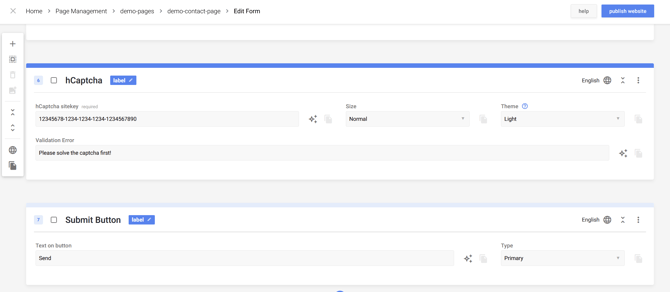
Once the hCaptcha field is added, we can enter the sitekey.
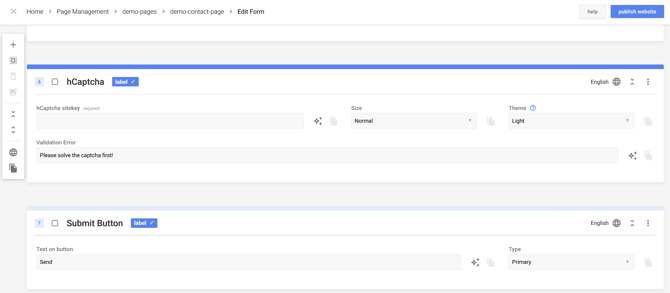
If you add a captcha field to your component, for example "Form w/ Content Banner", all other uses of this component will require a captcha to be able to submit.
Site Key
To find your Site Key, we go back to the dashboard in hCaptcha. Here we click on the tab: Sites
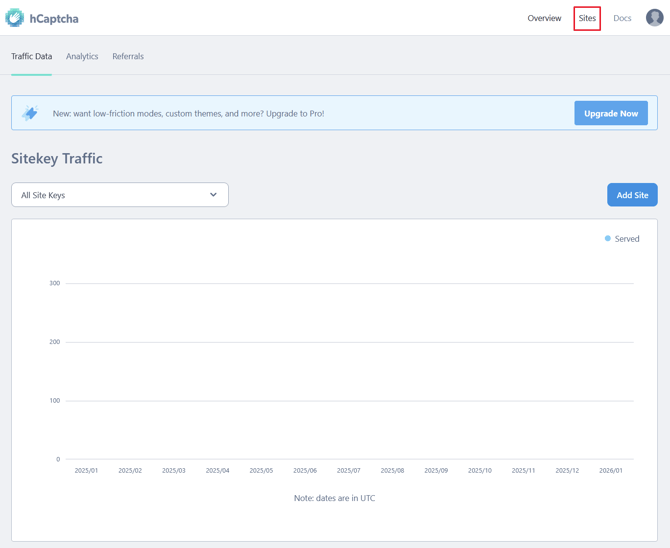
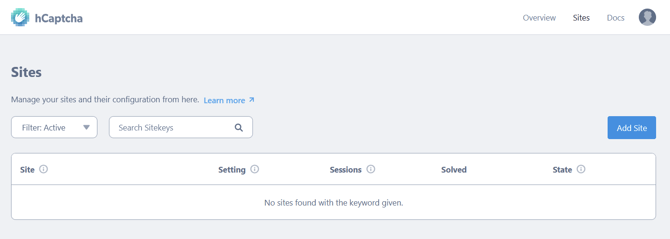
In this overview you can add a new site by clicking on Add Site
This will open the next screen, to fill in the basic information.
You don't need to add a domain, this is purely optional
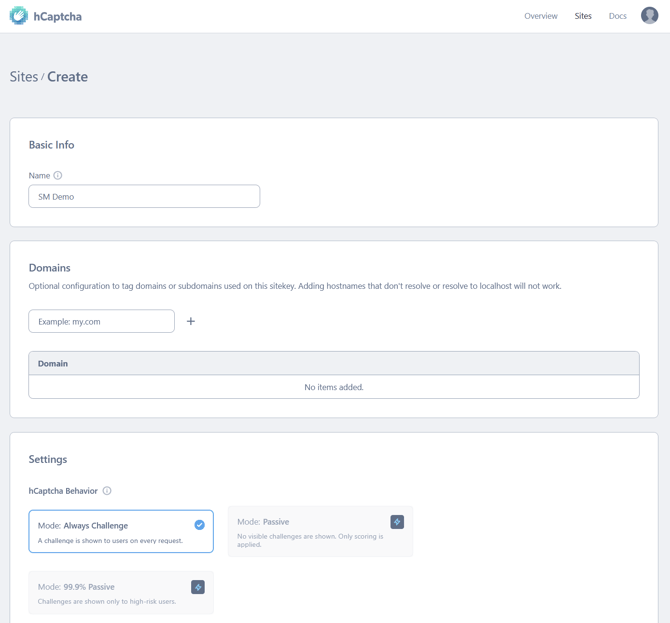
In the settings screen, you have the option to change the difficulty of the hCaptcha that the user will see
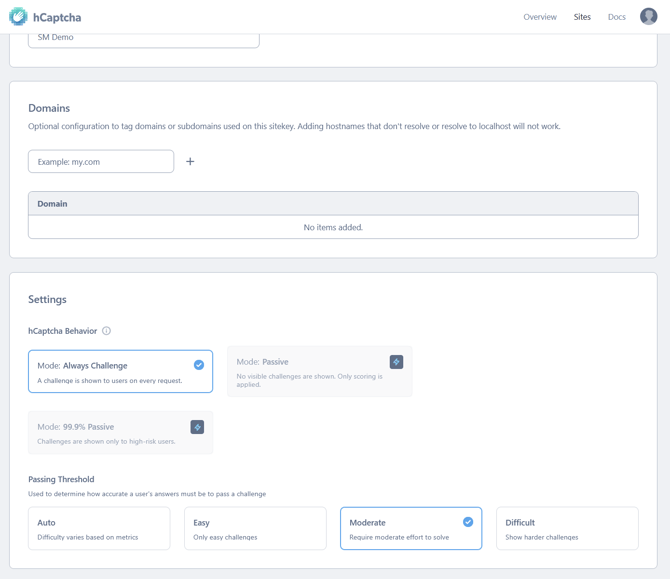
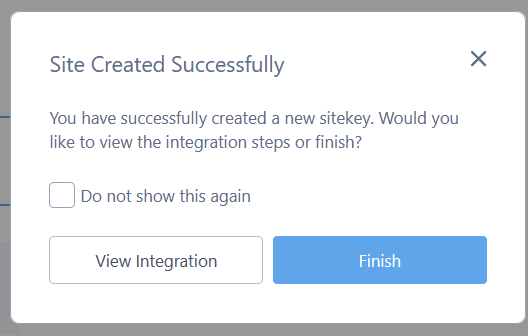
We can then click on Save > Finish
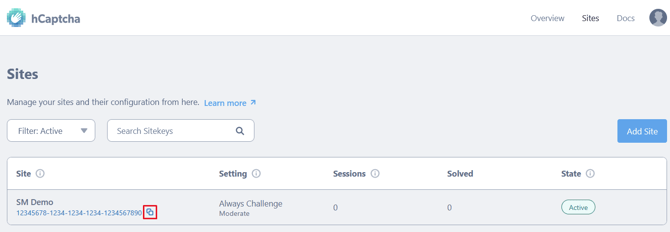
Your Site Key has been created, be sure to click on the icon to copy the site key
We can head over to SiteManager, and paste our Site Key in the empty field.
Options
Size
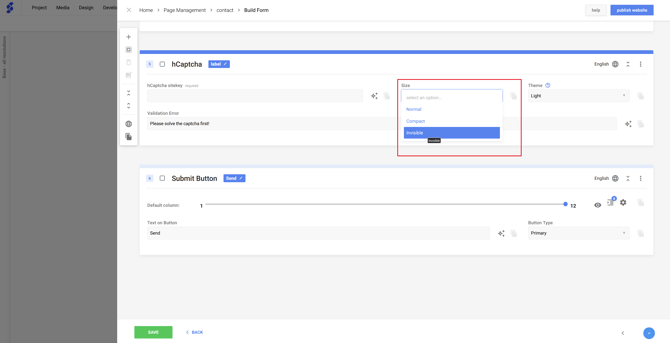
In this dropdown you can choose how the hCaptcha field is being shown, by default this will be set to "Normal". Other size options are: Compact & Invisible
To hide the hCaptcha, you can use the option Invisible. This is a new addition to the hCaptcha snippet.
hCaptcha also has a premium feature (called passive mode) but this is not needed.
If you have an existing hCaptcha, the option Invisible needs to be added manually.
Theme
You can also change how hCaptcha is being show. By default, this will use the "Light" mode.
Theme will not work when size has been set to Invisible.
All done!
You successfully added a captcha to your form, don't forget to publish your changes!